Useful Bluebeam Tips & Shortcuts
Useful Bluebeam tips and keyboard shortcuts for architects and designers who spend their day in PDFs.
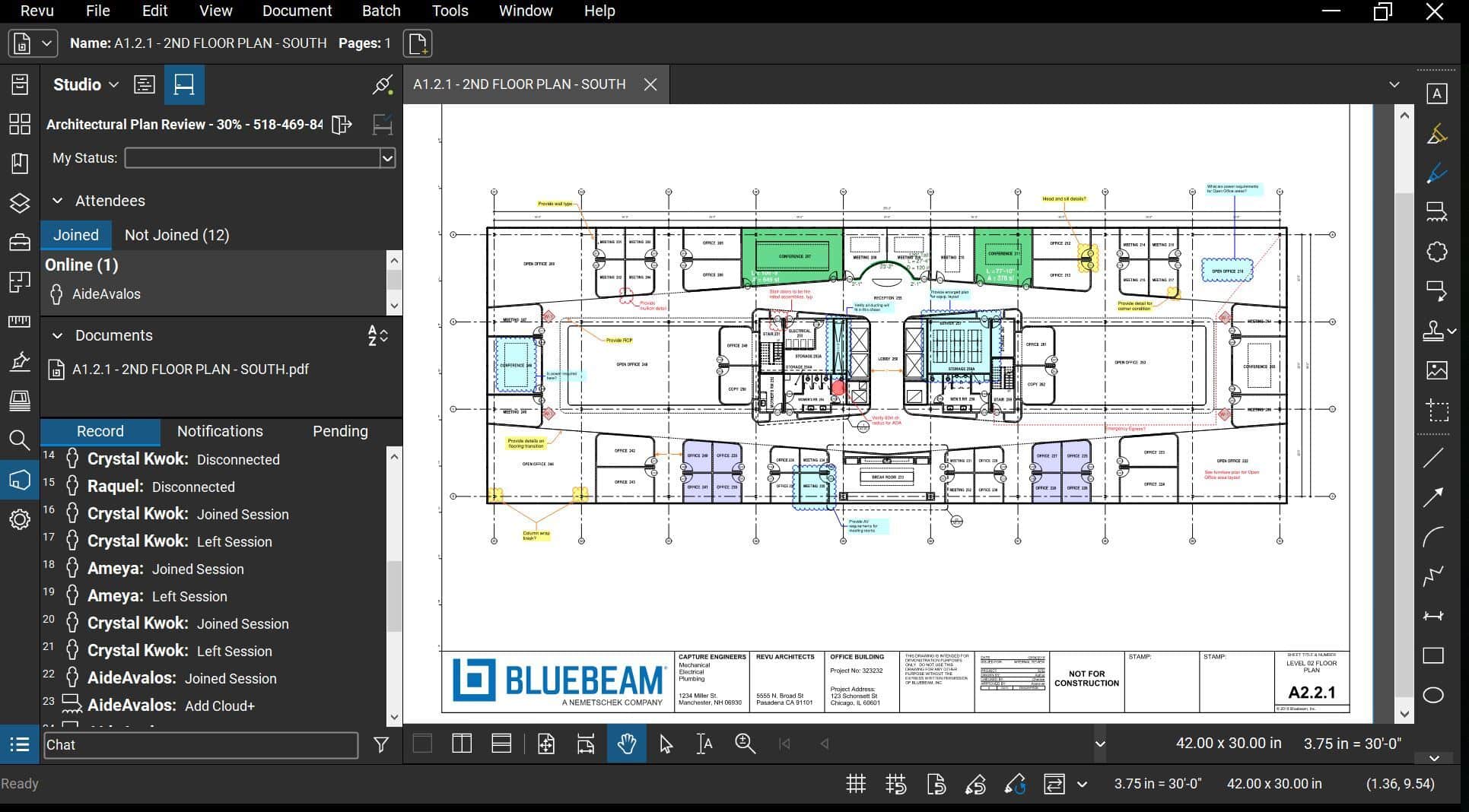
Bluebeam Revu
Knowing what Bluebeam Revu can do for you will streamline your work and make your work day a whole new experience. You’ll discover it’s a WHOLE LOT MORE than a pdf editor.
Useful Bluebeam Tips & Shortcuts
Navigating Bluebeam can not only become a whole lot easier when being more familiar with it but also efficient. You can minimize the time you spend editing PDFs in Bluebeam with a few tips, tricks, and useful keyboard shortcuts.
Apply to Pages
If you right-click your markup, you can select which set of pages you would like to apply the markup to instead of one at a time (default is applied to all pages).
Draw perfect lines, circles, and squares
A must-know for anyone who spends time on Bluebeam: Hold down shift when using the relative markup tool to draw these shapes perfectly.
Call out multiple areas on a drawing
After putting the Callout tool on the PDF, right-click the arrow and choose “Add Leader”. This allows you to add multiple leader lines. Now, you can do this to multiple locations on your drawing and repeat it as many times as you’d like.
Hyperlink Markups
Right-click the markup and click “Edit Action” or use the shortcut Ctrl + Shift + E. Select the hyperlink option.
Open hyperlinked content in a tab
Usually clicking a hyperlink will take you out of your document and into the linked content. However, by holding Ctrl when clicking it, you can open that content in a new tab inside Revu.
View tabs and panels on the second monitor
You can drag tabs and panels to your second monitor so they are always in view.
Export PDFs to Word or Excel
File -> Export and pick which file type you would like exported as. This can be convenient when you only have the file as a PDF and want to make certain changes.
Auto-size text boxes
If you navigate to Revu -> Preferences -> Tools -> Markups and select “Autosize Text Box and Callout Markups”, your boxes will always be perfectly sized for the text they contain. Keyboard shortcut Alt+Z can also auto-size an individual markup.
Make copies of your markups
If you hold down Ctrl then click and drag the markup, it will make a copy of it. You can also copy the markup and paste it into a separate pdf using Ctrl + Shift + V.
Embed photos
If a picture is worth a thousand words, save the words. When you’re on the job site and something doesn’t look quite right, a photo can tell a compelling story. Then you can embed that photo into the drawing easily with the Capture Markup tool. You can also add a comment with the photo so your message is double-clear.
Get Free Training
For quick familiarization with Revu, take advantage of the built-in Tutorials.
Bluebeam also has on-demand webinars presented by professionals available at: Bluebeam Webinars | Bluebeam Technical Support where you can find:
- Getting Started
- Markup Basics
- Measurement Basics
- Drawing Management Basics
- Bluebeam Studio
For shorter sets of focused learning, try the feature-based training videos at Training Videos | Bluebeam Technical Support
Ready to talk?
Book a fifteen-minute call, or tell us what you are dealing with and we will tell you what we would check first. No obligation.